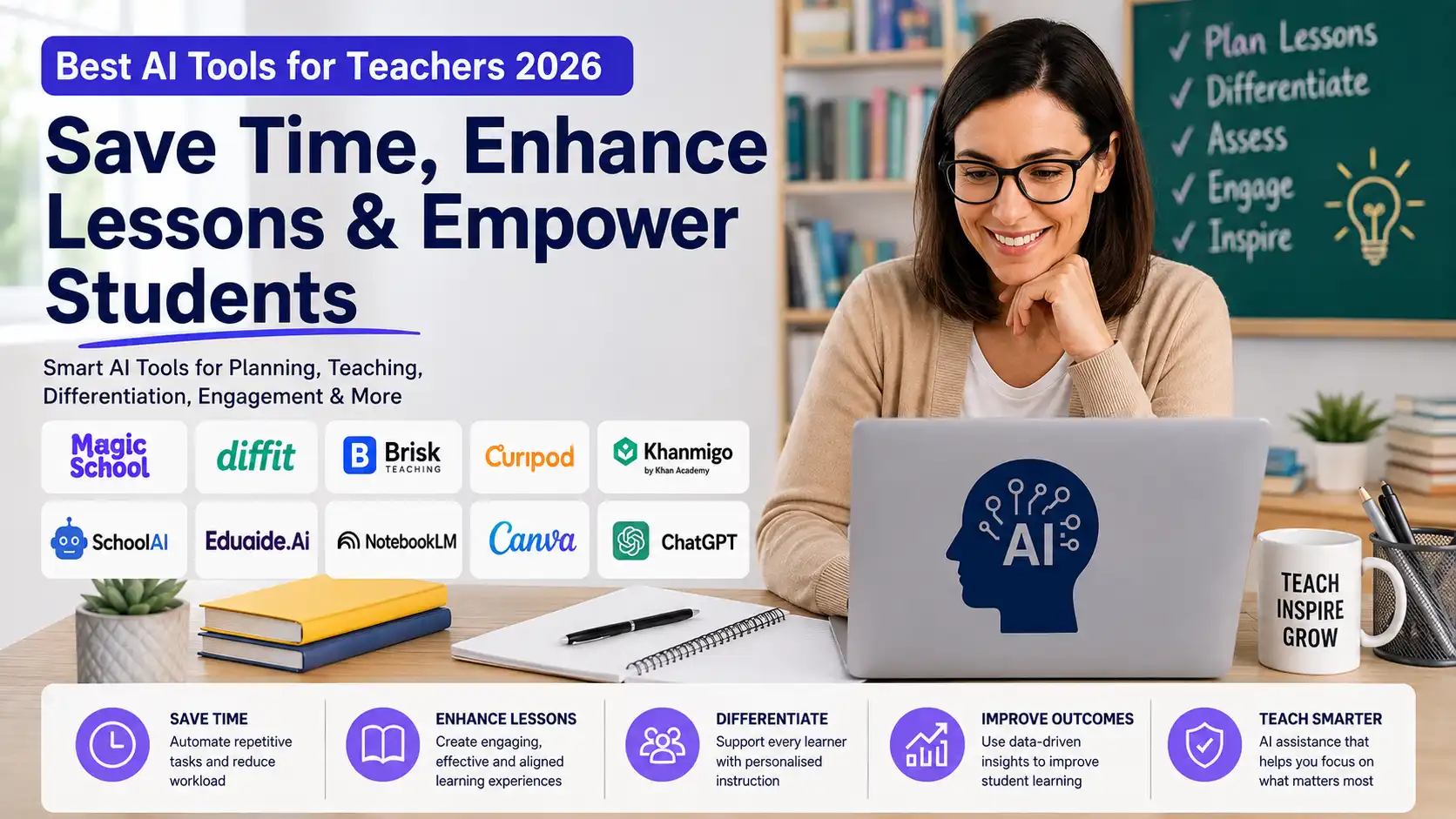
Best AI Tools for Teachers 2026: 10 Tools That Actually Save Time
The best AI tools for teachers 2026 can help educators spend less time on repetitive preparation and more time focusing on their students. From creating lesson plans and adapting learning materials to preparing assessments, generating feedback, and building engaging classroom activities, AI is becoming a practical part of the modern teacher’s workflow.
Teaching already comes with enough work. Planning lessons, creating activities, adapting materials for different students, grading assignments, writing feedback, preparing presentations, and keeping up with administrative tasks can easily fill a teacher’s day.
That is where AI tools can help.
But not every AI tool is equally useful for educators. Some are designed specifically for teachers, while others are general-purpose AI assistants that become useful only when you know how to prompt them effectively.
The best options solve specific problems.
A teacher who needs to adapt a reading passage for different ability levels may benefit more from a specialized differentiation tool than a general chatbot. Someone creating interactive lessons may need a completely different platform. And a teacher who regularly works with research papers or curriculum documents may benefit from a source-grounded AI notebook.
In this guide, we compare 10 of the best AI tools for teachers in 2026 and explain what each one is best at, who should use it, its main strengths and limitations, and where it fits into a teacher’s workflow.
The goal is simple: help you find an AI tool that saves time without taking the teacher out of teaching.
Quick Answer: What Are the Best AI Tools for Teachers?
If you want the short version, these are our top picks:
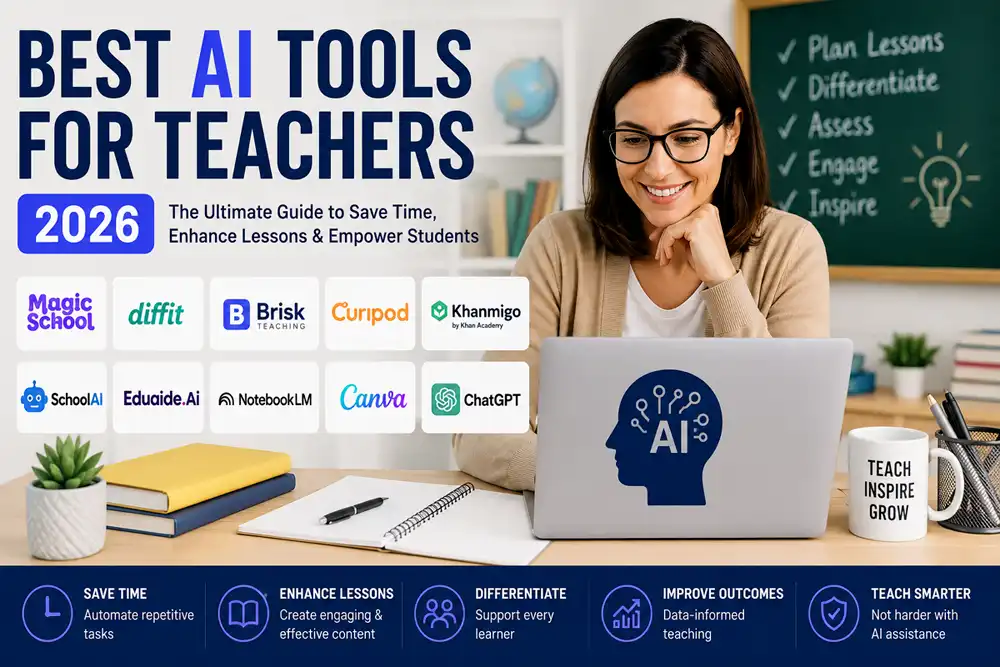
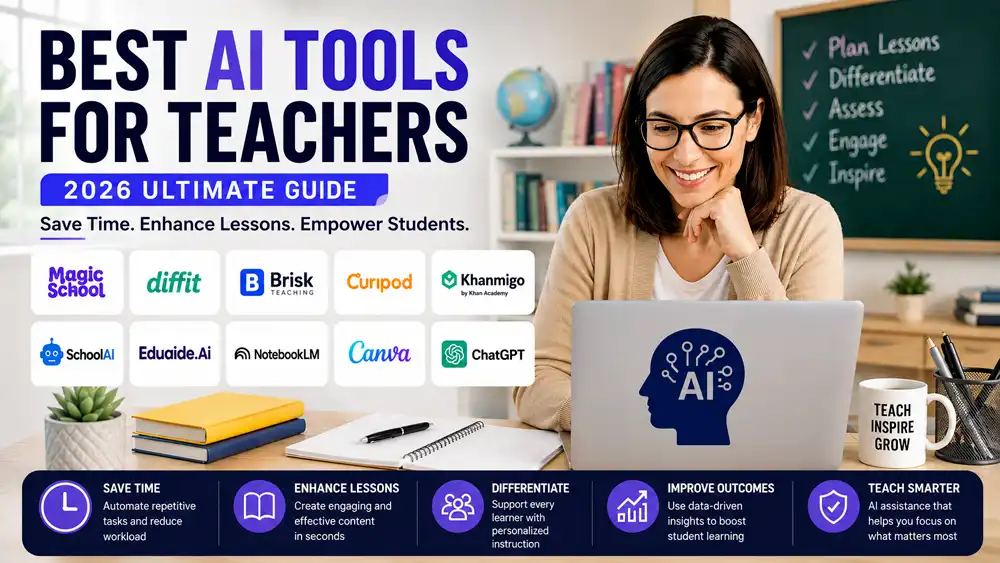
- MagicSchool AI — Best overall AI teaching assistant
- Diffit — Best for differentiated instruction
- Brisk Teaching — Best for AI-powered teaching workflows
- Curipod — Best for interactive lessons
- Khanmigo — Best for lesson planning and instructional support
- SchoolAI — Best for structured AI classroom activities
- Eduaide AI — Best for creating teaching resources
- NotebookLM — Best for working with source materials
- Canva — Best for visual teaching materials
- ChatGPT — Best general-purpose AI assistant for teachers
There is no single winner for every teacher. The right choice depends on what takes the most time in your classroom.
For example, a teacher struggling with differentiation may get more value from Diffit than from a general-purpose chatbot, while someone who spends hours creating presentations and visual materials may prefer Canva.
Best AI Tools for Teachers at a Glance
| AI Tool | Best For | Ideal For |
|---|---|---|
| MagicSchool AI | Lesson planning and teaching tasks | K–12 teachers |
| Diffit | Differentiating instructional materials | Teachers with diverse learners |
| Brisk Teaching | Planning, feedback, and classroom workflows | K–12 educators |
| Curipod | Interactive lessons and student participation | Interactive classrooms |
| Khanmigo | Lesson planning and instructional support | Teachers using Khan Academy |
| SchoolAI | Structured AI-powered classroom activities | K–12 educators |
| Eduaide AI | Teaching resources and instructional materials | Teachers and educators |
| NotebookLM | Working with source documents and research | Teachers and academic users |
| Canva | Presentations and visual resources | Teachers who create visual content |
| ChatGPT | General teaching assistance | Teachers across subjects |
How We Chose the Best AI Tools for Teachers
A large number of AI tools claim to be useful for educators, but simply having an AI chatbot does not make a product a good teaching tool.
For this list, we focus on practical value.
We looked at factors such as:
- Teaching usefulness: Does the tool solve a genuine classroom or preparation problem?
- Time savings: Can it reduce repetitive work for teachers?
- Ease of use: Can a teacher start using it without extensive technical knowledge?
- Quality of output: Are the generated resources useful enough to edit and use?
- Flexibility: Does it work across different subjects, grade levels, or teaching situations?
- Teacher control: Can educators review and modify AI-generated content?
- Student considerations: Does the tool make it clear when AI is being used with or around students?
- Privacy: Does the platform provide appropriate information about how teacher or student data is handled?
- Free access: Is there a free version or trial that allows teachers to evaluate the tool?
One important point: AI-generated teaching materials should always be reviewed by a teacher before they are used in class. AI can produce inaccurate information, inappropriate examples, or materials that do not match the students’ actual level.
The teacher remains the decision-maker. AI is the assistant.
1. MagicSchool AI — Best Overall AI Tool for Teachers
MagicSchool AI is one of the strongest options for teachers who want a dedicated AI assistant covering a wide range of everyday teaching tasks.
Instead of using a general chatbot and building every workflow from scratch, MagicSchool provides education-focused tools designed around common teacher needs.
Teachers can use it for tasks such as lesson planning, assessment preparation, instructional materials, and feedback.
Why MagicSchool AI Stands Out
The biggest advantage is breadth.
A teacher may need to create a lesson plan in the morning, develop an assessment later, adapt an activity for a different group of students, and prepare feedback before the end of the day.
A dedicated education platform can make those workflows easier to repeat.
MagicSchool has also continued adding and updating teacher-focused AI capabilities in 2026, including tools related to planning, assessment, and feedback.
Best For
Teachers who want one education-focused AI platform for multiple teaching tasks.
Pros
- Designed specifically around education workflows
- Large selection of teacher-focused tools
- Useful for lesson planning and assessment tasks
- Can reduce repetitive preparation work
- Better suited to classroom workflows than a generic chatbot
Cons
- The large number of tools can feel overwhelming at first
- Teachers still need to review generated content
- Some advanced capabilities may depend on the plan or school setup
Our Verdict
MagicSchool AI is our best overall pick for teachers who want a broad AI toolkit rather than a single-purpose application.
If your biggest problem is lesson preparation and repetitive teaching tasks, this is one of the first tools worth testing.
2. Diffit — Best for Differentiated Instruction
One of the hardest parts of teaching is making the same lesson accessible to students with different reading levels, learning needs, and levels of prior knowledge.
That is where Diffit stands out.
Diffit is an AI-powered education tool built specifically to help teachers create and adapt instructional materials. Instead of creating separate resources from scratch, teachers can start with a topic or existing material and generate versions that better match their students’ needs.
For example, a teacher might have a reading passage that is appropriate for most of the class but too difficult for some students. Diffit can help adapt the material while keeping students connected to the same core topic.
Why Diffit Stands Out
Diffit’s biggest strength is differentiation.
Teachers can work with an existing article, PDF, image, text, link, video, or vocabulary list and use it as the starting point for classroom materials. They can then adjust factors such as grade level, reading level, language, standards, scaffolding, and question difficulty.
This makes Diffit particularly useful in classrooms where students are working on the same subject but need different levels of support.
It can also generate a wide range of classroom-ready resources, including reading materials, graphic organizers, vocabulary activities, worksheets, slides, station activities, study guides, exit tickets, practice problems, and assessments.
A Practical Example
Imagine you are teaching a lesson about climate change.
Instead of spending an hour searching for multiple versions of suitable material, you could start with one source and use Diffit to create resources with different levels of support.
You might create:
- A more accessible reading version for students who need additional support
- Vocabulary activities for key terms
- Comprehension questions
- A graphic organizer
- Discussion prompts
- A more challenging activity for advanced learners
The important advantage is that students can still work around the same core topic, rather than being given completely unrelated assignments.
Diffit for English Learners
Diffit can also be useful for multilingual classrooms.
Teachers can translate resources into students’ home languages while adding vocabulary activities, scaffolds, graphic organizers, and other supports designed to help students access grade-level content.
That makes it more than a simple translation tool. The goal is to help students understand the subject matter while continuing to develop language skills.
What Teachers Can Create With Diffit
Diffit is useful across a surprisingly wide range of teaching situations.
Teachers can use it to create:
- Lesson activities
- Differentiated reading passages
- Guided notes
- Station-rotation materials
- Worksheets
- Study guides
- Exit tickets
- Vocabulary activities
- Science labs
- Math practice
- Review games
- Writing activities
- Graphic organizers
- Unit assessments
- Sub plans
Resources can also be edited and exported into formats and platforms teachers already use, including Google Docs, Slides, Forms, Google Classroom, Microsoft formats, and PDF.
Is Diffit Free?
Yes. Diffit currently offers a free Basic plan that allows teachers to create classroom-ready content, edit and adapt resources, download or print materials, and share them with colleagues. The free plan has limitations, including access to resource history from the previous 90 days.
Paid school and individual-teacher options add capabilities such as additional alignment and export features.
This makes the free version useful for teachers who want to test the platform before deciding whether they need additional features.
Pros
- Built specifically for teachers and instructional materials
- Excellent for differentiated instruction
- Can adapt existing classroom materials
- Supports multiple reading levels and languages
- Creates a wide range of classroom resources
- Resources can be edited before use
- Free version available
- Can export materials to common teaching platforms
Cons
- Primarily focused on instructional materials rather than being an all-purpose AI assistant
- Teachers still need to review AI-generated resources
- Some advanced features and exports require a paid plan
- Generated materials may still need customization for a specific classroom
Best For
Teachers who need to adapt lessons and learning materials for students with different reading levels, language needs, or levels of support.
Our Verdict
Diffit is one of the best AI tools for teachers who struggle with differentiation.
Its biggest advantage is not simply generating content. It helps teachers take an existing topic or resource and turn it into materials that are more accessible to different learners without forcing the teacher to create every version manually.
If your classroom includes mixed reading levels, multilingual learners, intervention groups, or students who need additional scaffolding, Diffit is definitely worth testing.
3. Brisk Teaching — Best for AI-Powered Teaching Workflows
Teachers often use several different tools throughout the school day. One tool is used for lesson planning, another for presentations, another for student feedback, and another for creating quizzes or worksheets.
Brisk Teaching takes a different approach. It brings AI-powered teaching tools into the workflow teachers already use, helping with planning, content creation, differentiation, feedback, and student activities.
That makes Brisk particularly useful for teachers who do not want to constantly switch between separate AI platforms.
Why Brisk Teaching Stands Out
Brisk works directly with many of the resources teachers already use, including Google and Microsoft tools, webpages, PDFs, YouTube videos, and other classroom materials.
A teacher can start with an existing resource and turn it into something more useful for a particular lesson.
For example, you could take a YouTube video and create a classroom activity around it, turn an article into a quiz, create a presentation from existing material, or adapt a reading passage for students working at different levels.
Brisk also supports personalized feedback and can help teachers analyze student writing and understand how students worked through an assignment.
What Can Teachers Do With Brisk?
Brisk covers a broad range of teacher workflows.
Some practical examples include:
- Creating lesson plans
- Building unit plans
- Generating quizzes
- Creating worksheets
- Making presentations
- Creating rubrics
- Giving personalized feedback
- Adjusting reading levels
- Translating instructional materials
- Creating student activities
- Generating discussion questions
- Turning videos and other resources into classroom materials
- Reviewing student writing
This breadth is one of the main reasons Brisk belongs on a list of the best AI tools for teachers 2026.
Rather than being built around one particular task, it is designed to support teachers across several stages of the teaching process.
Brisk’s New Conversational Workflow
One of the more interesting changes in 2026 is Brisk’s move toward a conversational creation experience.
Instead of choosing a tool from a long menu and completing multiple fields, teachers can describe what they want and Brisk can help determine the appropriate workflow.
For example, a teacher could ask for a quiz, lesson plan, differentiated version of an article, worksheet, or rubric and then refine the result through the conversation. Brisk says its new experience was introduced in July 2026 and is designed to make resource creation more intuitive.
This matters because the biggest challenge with many AI teaching tools is not generating content. It is getting the AI output to match the teacher’s actual lesson, students, and instructional goals.
Brisk for Differentiation
Differentiation is another area where Brisk can be useful.
Teachers can adjust instructional content for different reading levels and languages instead of manually rewriting the same resource several times. Brisk currently promotes support for multiple reading levels and more than 50 languages.
For example, an English teacher could take a challenging article and create a more accessible version for students who need additional reading support.
A science teacher could use the same approach with a technical passage.
The teacher still reviews the result, but the repetitive rewriting is handled much faster.
Brisk for Student Feedback
Giving meaningful feedback to every student can consume a huge amount of teacher time.
Brisk includes tools designed to help teachers provide personalized feedback on student writing and assignments. Its current platform also includes an Inspect Writing feature intended to provide insight into how students developed their work, rather than looking only at the final submission.
This can be particularly useful when a teacher wants to understand the writing process and provide feedback that goes beyond simply correcting mistakes.
However, AI-generated feedback should not automatically replace teacher judgment. Teachers should review suggestions before sending them to students, particularly when feedback affects grades or important academic decisions.
Brisk Boost for Student Activities
Brisk is not limited to teacher preparation.
Its Brisk Boost experience allows teachers to create AI-powered learning activities around specific content while maintaining control over how students interact with the AI. Teachers can monitor student conversations and use the resulting information to understand student progress.
That can make AI more structured than simply telling students to open a general chatbot and ask questions.
The teacher establishes the learning context first, which can make the AI activity more closely connected to the lesson.
Is Brisk Teaching Free?
Brisk offers a Free Forever plan for educators. Its current free offering includes AI-powered teaching tools that work across resources such as Google Docs, articles, slides, and YouTube.
Brisk also offers paid options with additional capabilities, including plans designed for schools and districts.
Because features and usage limits can change, teachers should check the current plan details before choosing Brisk for long-term classroom use.
Pros
- Designed specifically for educators
- Supports many common teaching workflows
- Works with resources teachers already use
- Useful for lesson planning and content creation
- Supports differentiation
- Can help with student feedback
- Supports student-facing AI activities
- Free plan available
- Conversational resource creation makes the workflow easier to use
Cons
- The number of features can take time to explore
- Some workflows depend on the platforms a teacher already uses
- AI-generated resources and feedback still require teacher review
- Advanced school and district capabilities may require paid plans
Best For
Teachers who want one AI platform that can support lesson planning, resource creation, differentiation, feedback, and student activities without constantly switching between different tools.
Our Verdict
Brisk Teaching is one of the strongest choices for teachers who want AI integrated into their existing workflow.
Its biggest advantage is breadth. Instead of solving only one teaching problem, Brisk connects several parts of the teacher’s daily workflow—from creating resources and differentiating materials to providing feedback and building student learning activities.
If your biggest frustration is spending too much time jumping between different tools and recreating the same teaching materials, Brisk is worth trying.
4. Curipod — Best for Interactive Lessons
Getting students to participate actively can be harder than simply delivering a good lesson. A teacher may have a well-prepared presentation, but that does not necessarily mean every student is thinking, writing, discussing, or demonstrating what they understand.
Curipod takes a more interactive approach.
It is an AI-powered lesson platform designed to help teachers turn lessons and presentations into activities where students can respond, discuss, write, draw, vote, and receive feedback during class.
Rather than treating AI as a replacement for the teacher, Curipod puts the teacher in control of the lesson while using AI to support lesson creation and feedback.
Why Curipod Stands Out
Curipod is particularly useful for teachers who want to move away from passive slide presentations.
Teachers can create lessons with interactive activities such as short-answer questions, multiple-choice questions, polls, word clouds, drawing activities, and AI-powered feedback. Student responses can appear in real time, giving teachers a quick view of what the class understands.
This makes Curipod less about simply creating slides and more about creating a lesson where students have something to do throughout the presentation.
Create a Lesson With AI
Teachers can start by selecting information such as their subject, grade level, skills, or lesson topic. Curipod can then generate a lesson containing slides and activities based on those selections.
Teachers are not locked into the first version, either.
Every part of a generated lesson can be edited. You can add or remove activities, change slides, add visuals, include videos, modify text, and customize the lesson for your students. Curipod also provides an AI editing option that allows teachers to describe changes they want to make.
That editing step is important because AI-generated lesson plans should be treated as a starting point, not as a finished curriculum.
Interactive Activities Keep Students Involved
Curipod offers several activity formats that can be used at different points in a lesson.
For example, a teacher could begin with a poll to find out what students already know, use a short-answer question to encourage deeper thinking, and finish with an exit activity to check understanding.
Teachers can also use:
- Multiple-choice questions
- Polls
- Word clouds
- Short-answer questions
- Drawing activities
- AI Whiteboard activities
- AI feedback activities
The variety makes it easier to change the pace of a lesson instead of asking students to listen to a presentation from beginning to end.
Real-Time Feedback
One of Curipod’s more useful features is AI-powered feedback.
Students can respond to a writing prompt and receive immediate, actionable feedback. They can then revise and resubmit their work, creating a simple feedback-and-revision loop within the lesson.
For teachers, this can reduce the delay between a student completing an activity and discovering how they can improve.
It also creates an opportunity to discuss responses as a class.
Instead of waiting until the next lesson to address common problems, teachers can use student responses during the current lesson to identify misunderstandings and adjust instruction.
Teachers Stay in Control
AI in education raises an important question: how much control should the teacher have over what students see?
Curipod’s current approach is strongly teacher-controlled. Its AI principles state that student AI interactions are structured inside teacher-created lessons rather than providing students with an unrestricted chatbot conversation. Teachers can also monitor and review AI feedback before it is shared with students.
Curipod also says student and teacher data is not used to train the AI models it uses and highlights FERPA, COPPA, and GDPR compliance.
For schools evaluating AI tools, these controls can be an important consideration.
Use Your Own Teaching Materials
Teachers do not have to start from scratch.
Curipod allows educators to bring their own content into lessons. Depending on the activity, teachers can upload files, paste text, or add screenshots. Existing worksheets, passages, and other teaching materials can become the foundation for interactive activities.
This is especially useful if you already have a curriculum or collection of resources you like.
Instead of replacing your existing material, you can use Curipod to make it more interactive.
How a Teacher Might Use Curipod
Imagine you are teaching a science lesson about ecosystems.
You could begin with a poll asking students which factor they believe has the biggest effect on an ecosystem.
Next, students could review a short passage and answer a question.
You could then display selected responses and use them to start a class discussion.
Later in the lesson, students might label or draw a diagram using an AI Whiteboard activity.
Finally, students could answer a short writing prompt and receive immediate feedback before revising their response.
The result is a lesson where students are repeatedly asked to think, respond, discuss, and revise rather than simply watch slides.
Is Curipod Free?
Curipod currently offers a free plan for teachers.
The free plan allows teachers to create and edit lessons without a limit on lesson creation and provides two teaching sessions per week. The same lesson can be used with multiple classes during the week while counting as one teaching session.
Curipod also offers school and district plans with additional capabilities and unlimited access to certain features.
For an individual teacher, the free plan provides a practical way to test whether the platform fits their classroom before considering a paid option.
Pros
- Designed around interactive teaching
- AI-assisted lesson creation
- Multiple student activity types
- Real-time student responses
- AI-powered writing feedback
- Teachers can edit generated lessons
- Supports teacher-created materials
- Free plan available
- Strong teacher-control and privacy positioning
Cons
- Best suited to teachers who actively use interactive lessons
- The free plan limits teaching sessions
- Some advanced capabilities are reserved for paid plans
- Teachers still need to review AI-generated content
- Setting up highly customized lessons can take additional preparation
Best For
Teachers who want to turn traditional presentations into interactive lessons where students actively participate, write, respond, discuss, and receive feedback.
Our Verdict
Curipod is one of the best AI teaching tools for classroom engagement.
Its biggest strength is the combination of AI-assisted lesson creation and interactive student activities. Instead of simply generating another presentation, Curipod helps teachers build lessons around participation.
If your students are spending too much time watching slides and not enough time actively responding, Curipod is worth trying.
5. Khanmigo — Best for Lesson Planning and Instructional Support
Teachers often need help with two different sides of education: preparing effective lessons and supporting students while they learn.
Khanmigo, from Khan Academy, is designed to help with both.
Rather than functioning only as a general-purpose chatbot, Khanmigo is built around education and connects AI assistance with Khan Academy’s learning environment. For teachers, it provides tools that can help with lesson planning, creating instructional materials, generating learning objectives, writing questions, and other preparation tasks. (khanacademy.org)
For educators who already use Khan Academy, that integration can make Khanmigo particularly interesting.
📌 Quick Facts: Khanmigo
Best for: Lesson planning and instructional support
Type: Education-focused AI assistant
Best suited to: Teachers and educators
Key uses: Lesson ideas, learning objectives, questions, activities, and instructional support
Student support: AI-guided learning and tutoring
Main advantage: Built specifically around education and the Khan Academy learning ecosystem
Free access: Availability and features vary by account, location, and program
Important: Always review AI-generated content before using it with students
Why Khanmigo Stands Out
Khanmigo’s biggest advantage is its education-first approach.
Teachers can use AI to help brainstorm lesson ideas, create learning objectives, develop questions, and prepare classroom activities. Instead of starting with a blank chatbot conversation, the platform is designed around common educational workflows.
This can make it useful when a teacher knows what students need to learn but does not want to spend a large amount of time creating every supporting resource manually.
Lesson Planning With Khanmigo
A teacher might start with a learning objective and ask Khanmigo to help develop a lesson around it.
For example, a middle-school math teacher preparing a lesson on linear equations could use AI to brainstorm:
- Learning objectives
- Warm-up activities
- Guided-practice questions
- Discussion prompts
- Exit-ticket questions
- Differentiation ideas
- Common misconceptions students may have
The teacher can then review and adapt those ideas to match the actual curriculum and classroom.
This makes Khanmigo useful as a planning assistant, rather than something that should independently design an entire course.
Creating Questions and Activities
Writing good questions can take almost as much time as writing the lesson itself.
Khanmigo can help teachers generate questions around a particular concept and create different types of prompts for students.
A teacher could ask for introductory questions first, followed by questions that require students to explain their reasoning.
That can help create a progression from basic understanding toward deeper thinking.
However, teachers should still check every generated question for accuracy, difficulty, ambiguity, and alignment with the lesson objective.
An AI-generated question can look polished while still testing the wrong skill.
Supporting Student Learning
Khanmigo is also designed to support students directly.
Khan Academy describes Khanmigo as an AI-powered tutor and teaching assistant that is intended to guide learners rather than simply provide answers. Its educational approach emphasizes helping students work through problems and develop understanding. (khanacademy.org)
This distinction matters.
A student asking an AI to solve a math problem immediately gets a result from many general-purpose chatbots. An education-focused system can instead encourage the student to think through the problem.
For teachers, that can make AI more useful as a learning companion when it is used within an appropriate instructional framework.
Khanmigo for Teachers
Khan Academy has positioned Khanmigo as a teaching assistant as well as a student-facing tutor.
Depending on availability and account type, teacher-focused capabilities can include assistance with:
- Lesson planning
- Learning objectives
- Exit tickets
- Rubrics
- Student support
- Classroom activity ideas
- Question generation
- Instructional preparation
The exact feature set can change over time, so teachers should check Khan Academy’s current educator offering before building a workflow around a particular feature.
A Practical Classroom Example
Imagine a teacher is preparing a history lesson about the Industrial Revolution.
Instead of asking a general AI chatbot for a complete lesson and copying the result, the teacher could use Khanmigo to brainstorm learning objectives, discussion questions, activities, and assessment ideas.
The teacher then selects the useful pieces and adapts them to the curriculum.
During the lesson, students could also use appropriate AI-supported learning experiences to explore questions and receive guidance.
The teacher remains responsible for deciding what students should learn and how the material should be taught.
Khanmigo and Responsible AI Use
Education requires a higher level of care than many ordinary AI use cases.
Teachers need to consider accuracy, student privacy, age appropriateness, academic integrity, and whether AI is actually helping students learn.
Khan Academy has published extensive information about its approach to responsible AI in education, including its emphasis on safeguards and educational outcomes. (khanacademy.org)
That makes responsible-use policies an important part of evaluating Khanmigo—not just its list of features.
Is Khanmigo Free for Teachers?
Khan Academy provides Khanmigo access through different offerings, and availability can vary by location, account type, and program.
Teachers should therefore check the current Khan Academy educator page for the latest access and pricing information rather than relying on an old “free” or “paid” label.
This is especially important for schools considering Khanmigo at scale.
Pros
- Built around education rather than general AI use
- Useful for lesson-planning support
- Can help generate instructional ideas and questions
- Designed to support student learning
- Integrates with the broader Khan Academy ecosystem
- Strong emphasis on responsible AI in education
- Useful for teachers who already use Khan Academy
Cons
- Best value may come from teachers already familiar with Khan Academy
- Feature availability can vary by account and location
- AI-generated material still requires teacher review
- Not intended to replace teacher judgment or curriculum planning
Best For
Teachers who want an education-focused AI assistant for lesson planning and instructional support, especially those already using Khan Academy.
Our Verdict
Khanmigo is a strong choice for teachers who want AI assistance connected to an established learning platform.
Its biggest strength is its education-first design. Rather than treating teaching as simply another text-generation task, Khanmigo is built around learning, instruction, and classroom support.
If you already use Khan Academy and want to explore how AI can support lesson preparation and student learning, Khanmigo is one of the most relevant tools to consider.
6. SchoolAI — Best for Structured AI Classroom Activities
If you want to use AI with students, rather than only using it behind the scenes for lesson preparation, SchoolAI is one of the more interesting options to consider.
SchoolAI is built around teacher-created AI learning experiences called Spaces. Teachers can design or customize a Space around a subject, grade level, learning objective, or activity, and students then interact with AI inside that controlled environment.
📌 Quick Facts: SchoolAI
- Best for: Structured AI-powered classroom activities
- Type: Education-focused AI learning platform
- Main feature: Teacher-created Spaces
- Student AI: Guided AI learning assistant called Dot
- Teacher dashboard: Mission Control
- Useful for: Tutoring, quizzes, bellringers, exit tickets, role-play, video activities, and personalized learning
- Teacher control: Strong — teachers can set instructions, boundaries, and learning goals
- Free access: SchoolAI currently offers free access for teachers
- Best suited to: K–12 teachers and schools
Why SchoolAI Stands Out
The biggest difference between SchoolAI and a general-purpose chatbot is teacher control.
Instead of simply telling students to open an AI chatbot and ask questions, teachers can create a specific learning environment with instructions about what students should learn, how the AI should respond, and what boundaries should apply.
This makes SchoolAI particularly interesting for teachers who want students to use AI while still keeping the activity connected to the curriculum.
What Are SchoolAI Spaces?
Spaces are customizable AI learning environments created by teachers.
A Space can function as a:
- AI tutor
- Interactive quiz
- Bellringer
- Exit ticket
- Role-playing activity
- Subject-specific learning assistant
- Video-based lesson
- Practice activity
- Personalized learning experience
Teachers can create a Space from scratch or customize existing resources from SchoolAI’s Discover library. SchoolAI’s current documentation says the library contains more than 200,000 teacher-created Spaces.
Students can then access a Space through a link or code, including through tools such as Google Classroom.
Dot: SchoolAI’s AI Learning Assistant
Dot is the AI assistant students interact with inside SchoolAI.
The important difference is that Dot operates within the instructions and boundaries established by the teacher or school.
SchoolAI’s current Student Portal also gives students access to a personal AI learning assistant while keeping their activity visible to teachers through Mission Control.
According to SchoolAI, Dot is designed to guide students through their thinking rather than simply hand them answers.
That approach can be particularly useful when teachers want AI to support learning without turning every assignment into an answer-generation exercise.
Mission Control Gives Teachers Visibility
One of SchoolAI’s strongest teacher features is Mission Control.
It gives teachers visibility into student interactions with AI while students are working inside Spaces. Teachers can see where students are struggling, what they are asking, and where additional support may be needed.
SchoolAI’s newer Class Intelligence features also include tools such as:
- Smart Groups for grouping students based on demonstrated progress
- Next Steps for instructional recommendations
- Session Insights
- Class Mastery Score
- Student-level learning insights
These features are designed to help teachers use AI interactions as another source of information about student learning.
SchoolAI for Interactive Video Lessons
SchoolAI also introduced an updated Video Explorer in 2026.
Teachers can use a YouTube video as the basis for an interactive learning experience. Instead of students simply watching the video, SchoolAI can place timed comprehension questions at key points.
Teachers can review, edit, or manually add questions before students see them.
This creates a simple way to turn existing video content into a more active learning experience.
For example, a history teacher could show a documentary clip and pause students at important moments to ask them to identify causes, explain evidence, or predict what happened next.
A Practical Classroom Example
Imagine an English teacher preparing a lesson about persuasive writing.
The teacher could create a SchoolAI Space containing:
- A short explanation of persuasive techniques
- Examples of persuasive writing
- Questions that test understanding
- A guided writing activity
- A student draft submission
- AI-guided feedback
Students could work through the activity at their own pace while the teacher monitors progress through Mission Control.
The teacher could then identify which students understand the concept and which students need additional instruction.
That is a much more useful application of classroom AI than simply asking every student to “use AI to write an essay.”
SchoolAI and Differentiated Learning
SchoolAI can also support differentiated instruction.
Spaces can be configured around different learning objectives and student needs, while SchoolAI says its learning experiences can adapt content difficulty as students progress. Built-in accessibility features include text-to-speech, speech-to-text, translation, and adjustable difficulty.
This could be useful in classrooms where students need different levels of support while working toward the same overall learning objective.
Teacher Control and Student Privacy
For schools, this is one of the most important areas to evaluate.
SchoolAI says educators can configure safeguards, content boundaries, and AI behavior. It also states that its AI providers are contractually prohibited from training on or selling student data, and that the platform is SOC 2 Type 2 compliant and FERPA and COPPA compliant.
SchoolAI also says student activity in Sidekick is visible to teachers and that safety and well-being alerts are active across sessions.
Schools should still review the platform’s current privacy documentation and their own district policies before introducing any AI system to students.
Is SchoolAI Free for Teachers?
SchoolAI currently says that teachers can try the platform for free. Its Spaces product page also describes the service as free for teachers while offering district-level capabilities for schools and organizations.
For teachers considering AI for classroom use, this makes it relatively easy to experiment with a small activity before deciding whether a broader school or district implementation makes sense.
Pros
- Built specifically for education
- Strong teacher control
- Teacher-created AI learning Spaces
- Student-facing AI activities
- Real-time teacher visibility
- Useful for personalized learning
- Interactive video activities
- Large library of existing Spaces
- Free access for teachers
- Strong focus on student safety and privacy
Cons
- More complex than a simple AI chatbot
- Teachers need some preparation to create effective Spaces
- The platform is particularly valuable when AI is used directly with students
- Some school and district features are designed for organizational implementations
- AI-generated content still needs teacher review
Best For
Teachers who want students to use AI inside structured, teacher-controlled learning activities rather than unrestricted chatbot conversations.
Our Verdict
SchoolAI is one of the best AI tools for teachers who want to bring AI directly into the classroom while maintaining teacher oversight.
Its combination of Spaces, Dot, and Mission Control makes it particularly different from general-purpose AI assistants.
If your goal is simply to generate a lesson plan, there are easier options. But if you want to create an AI-supported learning activity and actually see how students are interacting with it, SchoolAI deserves serious consideration.
7. Eduaide AI — Best for Creating Teaching Resources
Creating teaching materials can take almost as much time as planning the lesson itself. Teachers may need worksheets, discussion questions, graphic organizers, writing prompts, assessments, examples, and other resources for the same topic.
Eduaide AI is designed specifically around this workflow.
Unlike a general-purpose chatbot, Eduaide provides a teacher-focused workspace for creating and refining instructional materials. It can help teachers build resources using their curriculum, standards, and learning goals, then edit and adapt those materials before using them in class.
Why Eduaide AI Stands Out
Eduaide’s biggest strength is its focus on teacher resource creation.
The platform is designed for K–12 educators and can help create resources such as:
- Worksheets
- Graphic organizers
- Learning activities
- Discussion prompts
- Writing prompts
- Comprehension questions
- Assessment materials
- Lesson-planning resources
- Worked examples
- Classroom games
Eduaide also emphasizes editable output. Instead of treating an AI response as a finished product, teachers can revise and customize the generated material for their particular students and curriculum.
Creating Lesson Materials With Eduaide
A useful way to think about Eduaide is as a first-draft assistant for teachers.
A teacher can start with a topic, learning objective, or curriculum requirement and use Eduaide to generate an initial instructional resource.
For example, a teacher preparing a middle-school science lesson about ecosystems might use AI to create:
- A short instructional explanation
- Vocabulary definitions
- Comprehension questions
- A graphic organizer
- A classroom discussion activity
- An exit-ticket activity
The teacher can then review the material, change the wording, remove anything unsuitable, and adapt it to the class.
That workflow can be much faster than starting every resource from a blank document.
Eduaide for Worksheets and Activities
One of the strongest use cases is creating classroom-ready resources.
Eduaide says its platform can create worksheets, graphic organizers, and games based on standards, curriculum, and learning science.
This can be especially helpful when a teacher needs several versions of an activity.
For example, after teaching a lesson, a teacher might need:
- A standard practice worksheet
- A simpler version for students who need additional support
- A more challenging version for advanced students
- A review activity for the following day
AI can provide the first drafts quickly, while the teacher remains responsible for deciding what students actually receive.
Lesson Planning Workspace
Eduaide also offers a dedicated Lesson Planning Workspace.
According to Eduaide, the workspace can help teachers revise, differentiate, evaluate, add visuals, and export lesson plans after the initial AI-generated draft.
This is important because good lesson planning rarely ends with generating an outline.
Teachers often need to adjust:
- Learning objectives
- Activities
- Differentiation
- Assessment methods
- Timing
- Instructional materials
- Visual resources
Having these steps inside a teacher-focused workspace can make the process more practical than copying AI responses between different applications.
Using Videos as Teaching Resources
Eduaide can also turn video content into instructional materials.
Its current workflow allows teachers to use YouTube videos to generate resources such as comprehension questions, discussion prompts, and worksheet activities based on the video’s key ideas.
For example, a teacher could assign a short educational video and prepare an accompanying worksheet containing:
- Key vocabulary
- Comprehension questions
- Discussion prompts
- Reflection questions
- Follow-up activities
This can save preparation time while making passive video watching more interactive.
Eduaide and Differentiation
Teachers rarely teach a classroom where every student has exactly the same needs.
Eduaide can therefore be useful when a teacher wants to take one resource and adapt it for different learners.
Instead of creating every variation manually, the teacher can use AI to produce an initial version and then modify it.
For example:
Original:
A grade-level reading activity with five comprehension questions.
Adapted version:
Shorter passages, simpler vocabulary, additional scaffolding, and more guided questions.
Advanced version:
More challenging questions requiring analysis, evidence, or independent reasoning.
The important point is that AI should support this process rather than make the final instructional decision.
Teacher Control Matters
Eduaide’s teacher-facing approach is another reason it stands out.
Eduaide states that it is not a student-facing platform and is designed for teachers rather than individuals under 18. Its privacy center also states that it has no student-facing features.
That makes its role different from platforms designed for direct student-AI interaction.
For teachers who mainly want AI to help with preparation, resource creation, and planning, this can be a significant advantage.
A Practical Classroom Example
Imagine an elementary-school teacher preparing a lesson about the water cycle.
Instead of creating every resource manually, the teacher could use Eduaide to generate an initial package containing:
- A lesson outline
- Key vocabulary
- A student worksheet
- A graphic organizer
- Discussion questions
- A short assessment
- An exit ticket
The teacher then reviews the materials and adjusts them for the actual class.
For one lesson, that could reduce several separate preparation tasks into a single workflow.
Pros
- Designed specifically for teachers
- Strong focus on instructional resource creation
- Useful for worksheets and graphic organizers
- Supports lesson planning
- Materials are editable
- Can support differentiation
- Can create activities from video content
- Teacher-facing rather than student-facing
- Useful across multiple K–12 subjects
Cons
- AI-generated resources still require teacher review
- Some outputs may need significant customization
- Teachers unfamiliar with AI prompting may need time to learn the workflow
- It is more focused on teacher preparation than direct student AI interaction
Best For
Teachers who want an AI workspace for creating, adapting, and refining lesson plans and classroom resources.
Our Verdict
Eduaide AI is one of the better choices for teachers who want AI to handle the first draft of their instructional materials without giving up teacher control.
Its focus on worksheets, activities, lesson planning, differentiation, and editable teaching resources makes it more specialized than a general chatbot.
If your biggest problem is “I know what I want to teach, but I don’t have enough time to create all the materials,” Eduaide is worth trying.
For teachers who want students to interact directly with AI, however, a platform such as SchoolAI may be a better fit. Eduaide’s strength is primarily on the teacher preparation side.
8. NotebookLM — Best for Working With Source Materials
Teachers often work with a large amount of information before they ever step into the classroom.
They may have textbooks, PDFs, research papers, lesson notes, websites, Google Docs, presentations, YouTube videos, and other reference materials to organize and understand.
Teachers who also need help organizing meeting notes, lectures, and other information can explore our guide to the best AI note-taking apps.
NotebookLM is particularly useful for this type of work because it is designed around the sources you provide.
Instead of starting with a blank chatbot conversation, you create a notebook, add your relevant sources, and then ask questions or generate materials based on those sources.
Why NotebookLM Stands Out
NotebookLM is especially valuable when accuracy and source context matter.
Teachers can add materials such as:
- PDF documents
- Websites
- YouTube videos
- Audio files
- Google Docs
- Google Slides
- Other supported source materials
The AI can then work with those sources to answer questions, summarize information, identify important ideas, and create additional learning materials.
This source-focused approach makes NotebookLM different from a general AI assistant.
For example, if you are preparing a lesson from a specific textbook chapter, you can give NotebookLM that chapter instead of asking a general chatbot to explain the topic from memory.
Ask Questions About Your Own Materials
One of the most useful features for teachers is source-grounded question answering.
Imagine that you have uploaded a 40-page PDF containing curriculum guidance and lesson resources.
Instead of manually searching through the document, you could ask:
What are the three main learning objectives in this document?
Or:
Create five discussion questions based only on the uploaded material.
Or:
Explain this topic at a grade 7 reading level.
NotebookLM can use the information in your notebook sources to produce an answer and provide citations that help you check where the information came from.
That makes it particularly useful when a teacher wants AI assistance without completely separating the AI response from the original teaching materials.
Create Study Guides and Learning Materials
NotebookLM can also transform source material into different formats.
Teachers can use their uploaded resources to create things such as:
- Study guides
- Briefing documents
- FAQs
- Reports
- Mind maps
- Flashcards
- Quizzes
- Infographics
- Presentations
This can turn one source document into several useful classroom resources.
For example, suppose a teacher uploads a chapter about the American Civil War.
From that single source, the teacher could create:
Study guide → major events and concepts
Flashcards → important names, dates, and vocabulary
Quiz → comprehension and review questions
Mind map → relationships between major topics
Presentation → a structured overview for classroom teaching
The teacher can then review and edit the material before giving it to students.
Audio Overviews for Teachers
One of NotebookLM’s most distinctive features is Audio Overviews.
These turn information from your sources into an AI-generated, podcast-style discussion.
For teachers, this can be useful when they want to review material while doing something else.
For example, a teacher preparing a new subject could upload several reference documents and generate an Audio Overview to help review the major concepts.
Current NotebookLM also provides different Audio Overview formats, including deeper discussions, shorter summaries, critiques, and debates. Teachers can customize the language, length, and focus of the generated audio.
This makes NotebookLM useful not only for creating student materials but also for teacher professional learning and preparation.
Turn Videos Into Learning Resources
Teachers can also use YouTube videos as sources.
That opens up an interesting workflow for classroom preparation.
Suppose you find a 20-minute educational video that explains photosynthesis.
Instead of simply watching it and taking notes manually, you can add the video as a source and use NotebookLM to work with its content.
You could then ask for:
- Main concepts
- Important vocabulary
- A lesson summary
- Comprehension questions
- Discussion questions
- A student study guide
This can significantly reduce the time required to turn existing educational content into classroom resources.
Useful for Lesson Research
NotebookLM can also be valuable before the actual lesson-planning stage.
For example, a teacher researching a new topic might collect:
- A curriculum document
- A textbook chapter
- A reliable educational website
- A research paper
- A relevant video
Instead of keeping those sources open in five different browser tabs, the teacher can organize them into a notebook and use AI to explore the combined material.
The teacher might ask:
What concepts appear across all five sources?
Or:
Where do these sources disagree?
Or:
Create a simple explanation suitable for students who are new to this topic.
This can make research and preparation more efficient.
NotebookLM for Student Activities
Although NotebookLM is extremely useful for teachers, it can also support student learning when used appropriately.
A teacher could prepare a notebook containing approved sources for a research project.
Students could then use those sources to:
- Review information
- Ask questions
- Build study guides
- Create flashcards
- Review important concepts
- Explore relationships between ideas
This approach can be particularly useful for research-based assignments because students are working with a defined source collection rather than relying entirely on unrestricted web searches.
For broader student-focused AI workflows, teachers can also explore resources such as our guide to the best AI tools for students.
A Practical Classroom Example
Imagine a high-school history teacher preparing a unit about World War II.
The teacher collects:
- Three textbook chapters
- A primary-source document
- A historical article
- Two educational videos
- A curriculum guide
The teacher adds those materials to NotebookLM.
The teacher can then use the notebook to identify major themes and generate:
- A teacher briefing
- A student study guide
- Vocabulary flashcards
- A review quiz
- Discussion questions
- A visual overview
The teacher still reviews everything, but much of the repetitive preparation can be accelerated.
Why Source Grounding Matters
This is probably NotebookLM’s biggest advantage for educators.
A general AI chatbot can be useful for brainstorming, but it may provide information that is not directly connected to the materials a teacher is using.
NotebookLM’s source-centered design changes the workflow.
Instead of asking:
“What do you know about this topic?”
the teacher can ask:
“What does my teaching material say about this topic?”
That distinction is important when lesson preparation depends on a particular textbook, curriculum document, research paper, or collection of approved sources.
NotebookLM also provides citations in its source-grounded responses, making it easier for teachers to verify important claims.
Privacy and Responsible Use
Teachers should still be careful about what they upload.
Do not automatically upload confidential student records, personally identifiable student information, private assessment data, or other sensitive material simply because an AI tool accepts the file.
Google’s current documentation says NotebookLM data is not used to train NotebookLM except when users submit feedback, while Workspace and Workspace for Education users have additional protections described in Google’s documentation.
Schools and teachers should still follow their own district or institutional policies when deciding what information can be uploaded.
Pros
- Excellent for source-based research
- Works with multiple types of source material
- Useful for lesson preparation
- Provides source-grounded answers
- Citations make verification easier
- Creates study guides and quizzes
- Generates flashcards and mind maps
- Audio Overviews can speed up information review
- Useful for organizing complex teaching materials
Cons
- Not primarily a traditional lesson-planning platform
- AI-generated content still requires teacher verification
- Results depend heavily on the quality of the uploaded sources
- Teachers need to be careful with sensitive information
- Some advanced features may vary by account and availability
Best For
Teachers who frequently work with textbooks, PDFs, research, websites, videos, curriculum documents, and other source materials.
Our Verdict
NotebookLM is one of the best AI tools for teachers who want to turn existing source material into useful teaching and learning resources.
Its biggest strength isn’t simply generating text. It is the ability to work around a defined collection of sources and help teachers understand, organize, question, and transform that material.
If your teaching workflow starts with “Here are the materials I need to understand,” NotebookLM is an excellent choice.
If your workflow starts with “Help me create a complete lesson from scratch,” a dedicated teaching platform such as MagicSchool AI or Eduaide AI may be more suitable.
For teachers who want a research and source-analysis assistant, however, NotebookLM is difficult to overlook.
9. Canva — Best for Visual Teaching Materials
Not every lesson needs another paragraph of text.
Sometimes students understand a concept faster when they can see it.
That is where Canva becomes especially useful for teachers. Although Canva is widely known as a graphic-design platform, Canva Education has developed into a much broader teaching and learning workspace, combining presentations, worksheets, videos, interactive activities, lesson planning, classroom collaboration, and AI-powered creation tools.
For teachers who want to turn ordinary lesson content into something more visual and engaging, Canva is one of the strongest options in this list.
Why Canva Stands Out for Teachers
The biggest advantage of Canva is that teachers don’t need to be professional designers to create polished classroom materials.
Canva provides education-specific templates and tools for creating:
- Presentations
- Worksheets
- Posters
- Infographics
- Lesson plans
- Videos
- Classroom activities
- Whiteboards
- Quizzes
- Interactive learning experiences
Canva Education is currently free for verified K–12 teachers and eligible students, with education-specific resources and premium features included. (canva.com)
That combination makes Canva much more than a tool for making attractive slides.
Canva AI for Lesson Planning
One of Canva’s most useful developments for teachers is the integration of AI into the lesson-planning workflow.
With Magic Write and Canva’s newer AI tools, teachers can start with a simple idea or learning objective and generate a first draft of a lesson plan, activity, worksheet, or other classroom material.
Canva’s current AI lesson-plan generator can create lesson plans containing objectives, assessments, and educational materials from a prompt. (canva.com)
For example, a teacher could start with:
Create a 45-minute Grade 6 science lesson about the water cycle with a learning objective, warm-up activity, guided practice, assessment, and exit ticket.
The generated material is only a starting point. The teacher can then edit the content, change the examples, adjust the difficulty, and turn the lesson into a visually organized classroom resource.
Create More Engaging Presentations
Teachers often use presentations to explain new concepts, but a basic slide deck can quickly become a wall of text.
Canva makes it easier to combine:
- Text
- Images
- Diagrams
- Charts
- Videos
- Animations
- Icons
- Illustrations
- Interactive elements
This can be particularly useful for subjects where visual explanations make abstract ideas easier to understand.
For example:
Science: diagrams of the human body, food chains, or the solar system.
Mathematics: visual explanations of geometry, graphs, and mathematical relationships.
History: timelines, maps, historical photographs, and visual summaries.
English: story maps, character profiles, vocabulary cards, and writing prompts.
The goal isn’t to make every lesson flashy. The goal is to use visual design when it genuinely improves understanding.
Turn Learning Objectives Into Activities
Canva’s education tools now go beyond static designs.
Its current Learn Grid brings together curriculum-mapped resources and AI-powered activity creation, allowing teachers to find or create classroom activities based on subject, grade, and topic. Canva says Learn Grid includes more than 50,000 curriculum-mapped resources and supports more than 30 activity types across 16+ languages. (canva.com)
This creates an interesting workflow:
Learning objective → activity → visual material → student participation
Instead of searching multiple websites for individual resources, teachers can increasingly build parts of the lesson within the same ecosystem.
Canva for Worksheets
Worksheets are another practical use case.
A teacher can create a worksheet from scratch or use an existing template and then customize it for the lesson.
AI can help with the initial content, while Canva’s editor makes it easier to organize the final resource visually.
For example, a vocabulary worksheet might contain:
- Target vocabulary
- Definitions
- Matching exercises
- Example sentences
- Images
- Short-answer questions
- A reflection activity
Teachers can also create different versions for different classes or learning needs.
This can save time when a teacher wants the same core material presented in several formats.
Interactive Quizzes and Activities
Canva has also expanded its classroom tools beyond presentations and printable resources.
Teachers can create interactive learning experiences, including quizzes and classroom activities.
Its current education platform supports interactive tools such as quizzes, polls, games, whiteboards, and other activities designed to encourage student participation. (canva.com)
That means Canva can be used during the lesson rather than only before it.
A teacher might begin with a presentation, switch to an interactive quiz to check understanding, use a whiteboard activity for collaboration, and finish with a student reflection.
Canva Code for Interactive Learning
One particularly interesting feature for educators is Canva Code.
Teachers can describe an interactive experience they want to create, such as a game, timeline, quiz, or interactive map, without needing to write the underlying code themselves.
For example, a geography teacher could ask for an interactive map activity showing different climate zones.
A history teacher could create an interactive timeline.
A science teacher could create a simple classification activity.
The advantage is that teachers can experiment with interactive learning experiences without having to become programmers.
Canva introduced these capabilities as part of its broader education-focused AI and classroom tools. (canva.com)
Make Existing Teaching Materials Better
Teachers don’t always need to create something from scratch.
Often they already have a PowerPoint presentation, PDF, worksheet, photograph, or other classroom resource that simply needs improvement.
Canva’s AI-powered editing tools can help teachers transform or refresh existing materials.
For example, a teacher might upload an old worksheet and then redesign it into a cleaner, more visual format.
Tools such as Magic Grab can also help extract and edit elements from existing designs or images.
This can be particularly valuable for teachers who have accumulated years of teaching resources but don’t have time to redesign everything manually.
Translate and Adapt Learning Materials
Another useful advantage is the ability to adapt visual teaching materials for different learners.
Canva’s education tools include translation and accessibility-related features that can help teachers make materials more inclusive.
For example, a teacher could create a classroom poster in one language and then produce another version for multilingual learners.
Canva also supports captions and other accessibility features that can make content easier to access.
This becomes particularly useful in diverse classrooms where one resource may need to work for students with different language or accessibility needs. (canva.com)
A Practical Classroom Example
Imagine an English teacher preparing a lesson about persuasive writing.
Instead of creating several resources separately, the teacher could use Canva to build an entire visual lesson package:
Step 1: Generate a lesson outline with AI.
Step 2: Create presentation slides explaining persuasive techniques.
Step 3: Add examples of persuasive writing.
Step 4: Create a student worksheet.
Step 5: Add an interactive quiz.
Step 6: Finish with an exit-ticket activity.
The teacher can then edit everything to match the class’s actual needs.
This is where Canva’s biggest advantage becomes clear: multiple classroom tasks can happen in one visual workspace.
Canva for Student Projects
Canva isn’t only useful for teachers creating materials.
Students can also use it to demonstrate what they have learned.
For example, students could create:
- Presentations
- Infographics
- Posters
- Video projects
- Digital portfolios
- Timelines
- Visual reports
This changes Canva from a teacher-production tool into a platform for student-created learning.
A history student might create a visual timeline.
A science student might design an infographic explaining an ecosystem.
An English student might create a visual presentation about a novel.
This can help teachers assess understanding through creative projects rather than relying exclusively on traditional written assignments.
Canva and AI Safety
When AI is used with students, safety and teacher control matter.
Canva says its education platform includes classroom-focused safety controls, age-appropriate AI access, and teacher or administrator controls. Canva also states that it does not use student data to train its AI models. (canva.com)
Canva Education is also described by Canva as FERPA and COPPA compliant for its education offering. (canva.com)
Teachers should still follow their school’s technology and student-data policies before enabling AI features for students.
Is Canva Education Free for Teachers?
Yes, Canva currently offers Canva Education free for verified K–12 teachers and eligible students.
Teachers may need to verify their teaching status before receiving access to the education offering. Canva says eligible educators can receive access to premium Canva features and education-specific resources at no cost. (canva.com)
Availability and specific AI features can vary depending on the education account, region, or administrator settings, so teachers should check their current account.
Pros
- Excellent for visual teaching materials
- Free Canva Education for eligible K–12 teachers
- Large collection of education templates
- AI-powered lesson planning
- AI-generated worksheets and activities
- Interactive quizzes and classroom activities
- Presentation and video creation
- Strong collaboration features
- Useful for student projects
- Translation and accessibility tools
- Increasingly powerful AI features
Cons
- More design-focused than dedicated teacher-planning platforms
- Some AI features may have account or administrator restrictions
- Teachers can spend too much time designing instead of teaching
- AI-generated materials still need review
- Not every lesson benefits from heavy visual design
Best For
Teachers who want to create attractive presentations, worksheets, activities, videos, interactive lessons, and student projects in one place.
Our Verdict
Canva is one of the best AI tools for teachers who want to combine AI-powered creation with visual learning.
Its biggest advantage isn’t simply that it can generate text or images. It’s that teachers can take an idea and turn it into a complete, editable classroom resource without moving between several different design applications.
If your priority is differentiated instructional content, Diffit may be the better choice.
If you want structured student-AI interaction, SchoolAI is more specialized.
But if you want to plan, design, present, create activities, and make classroom materials visually engaging, Canva is one of the strongest all-around options.
And if you’re also exploring AI beyond classroom teaching, our guide to the best AI tools for students can help you identify tools that are better suited to student workflows.
10. ChatGPT — Best General-Purpose AI Assistant for Teachers
If you want one AI tool that can help with a wide range of teaching tasks, ChatGPT is probably the most flexible option on this list.
Unlike specialized platforms built around one part of the teaching workflow, ChatGPT can be adapted to many different jobs. Teachers can use it for lesson planning, brainstorming, explanations, quizzes, rubrics, feedback, classroom activities, research, differentiation, writing support, and much more.
That flexibility is its biggest strength.
It is also the reason teachers need to use it thoughtfully.
ChatGPT can generate a useful first draft in seconds, but the teacher still needs to decide whether the content is accurate, age-appropriate, aligned with the curriculum, and appropriate for the particular class.
Why ChatGPT Stands Out
ChatGPT is a general-purpose AI assistant rather than a tool designed around only one teaching task.
That means a teacher can use the same platform for very different jobs.
For example:
Before class: Create a lesson outline.
During preparation: Generate examples and discussion questions.
For assessment: Create quiz questions and rubric ideas.
For differentiation: Rewrite an explanation at different reading levels.
For feedback: Help structure comments on student work.
For research: Analyze documents and summarize information.
For professional development: Explain unfamiliar teaching concepts.
This makes ChatGPT particularly useful for teachers who don’t want to maintain a separate AI tool for every individual task.
OpenAI’s educator guidance specifically highlights lesson planning, teaching aids, explanations, examples, analogies, student learning activities, and AI tutoring as potential education use cases.
ChatGPT for Lesson Planning
Lesson planning is one of the simplest ways to get value from ChatGPT.
Instead of asking:
Create a lesson plan about photosynthesis.
A teacher can provide much more useful context:
Create a 50-minute Grade 8 science lesson about photosynthesis. The students already understand plant cells but struggle with chemical equations. Include a five-minute warm-up, a short explanation, a guided activity, three formative assessment questions, and an exit ticket.
The more relevant context you provide, the more useful the initial draft is likely to be.
Teachers can also ask ChatGPT to revise the lesson after reviewing the first version.
For example:
Reduce the lecture portion to 10 minutes and add a collaborative activity.
Or:
Make the assessment suitable for students who are still developing English proficiency.
This makes the interaction iterative rather than treating the first AI response as the finished lesson.
Create Teaching Aids and Examples
Teachers frequently need multiple explanations of the same concept.
One student may understand a textbook definition immediately, while another may need an analogy or a real-world example.
ChatGPT can help generate those alternatives.
For example, a mathematics teacher could ask for:
- A simple explanation
- A real-world analogy
- A worked example
- A visual explanation
- Common mistakes
- Practice questions
- A challenge question
This can help teachers prepare different ways of explaining the same concept.
The teacher still decides which explanation is appropriate.
Differentiate Learning Materials
Differentiation is another strong use case.
A teacher can provide an existing explanation and ask ChatGPT to adapt it for different learners.
For example:
Version 1: Grade-level explanation
Version 2: Simpler vocabulary and shorter sentences
Version 3: Additional scaffolding and examples
Version 4: Extension activity for advanced learners
This doesn’t mean the AI understands every student’s needs automatically.
The teacher still needs to review the material and decide whether the adaptation actually helps the learner.
But for repetitive rewriting and drafting, the time savings can be significant.
Teachers looking specifically for student-focused AI resources can also connect this workflow with our guide to the best AI tools for students.
Create Quizzes and Assessments
ChatGPT can also help teachers generate assessment materials.
For example, a teacher could provide a lesson objective and request:
- Multiple-choice questions
- Short-answer questions
- True/false questions
- Application questions
- Higher-order thinking questions
- Exit tickets
- Review questions
The teacher can then ask ChatGPT to provide an answer key or explain what each question is designed to assess.
A useful approach is to specify the desired difficulty and learning objective.
For example:
Create 10 Grade 7 questions that test whether students can apply the concept rather than simply recall the definition.
That usually produces a more useful starting point than simply requesting “10 questions.”
Help With Feedback and Rubrics
Teachers spend a significant amount of time providing feedback.
ChatGPT can help create rubric criteria, organize feedback, and draft comments that teachers can then personalize.
For example, a teacher might ask:
Create a four-level rubric for a Grade 9 persuasive essay. Assess argument quality, evidence, organization, counterargument, and writing mechanics.
The teacher can then adapt the rubric to match the school’s assessment standards.
ChatGPT can also help transform rough teacher notes into clearer feedback.
However, teachers should be careful about allowing AI to make final grading decisions.
A better approach is:
Teacher evaluates → AI helps organize feedback → Teacher reviews → Student receives feedback
rather than:
AI evaluates → automatic grade → student receives result
Human oversight remains essential.
Study Mode for Learning Support
ChatGPT also includes Study Mode, which is designed around guided learning rather than simply returning an answer.
Study Mode can ask questions, guide a learner through a problem, explain concepts step by step, check understanding, and work with uploaded class materials. It is available globally across ChatGPT plans on web, iOS, and Android.
This gives teachers another way to think about ChatGPT.
It doesn’t have to be only a content-generation tool.
It can also be used to demonstrate a more guided approach to AI-assisted learning.
For example, instead of asking AI to solve a mathematics problem immediately, a learner can work through the problem with questions and hints.
Teachers can also use the approach when designing AI-supported learning activities.
Work With Classroom Materials
ChatGPT can work with uploaded files and other information provided by the teacher.
A teacher might upload:
- A lesson plan
- Curriculum documents
- Class notes
- A worksheet
- A PDF
- A rubric
- A presentation
Then the teacher can ask ChatGPT to summarize, reorganize, compare, or transform that material.
For example:
Based on this lesson plan, create five formative assessment questions.
Or:
Turn this worksheet into a review activity.
Or:
Identify concepts in this material that students may find difficult.
This can make ChatGPT particularly useful as a preparation assistant.
Research and Web Search
When current information is needed, ChatGPT can also use web search where available.
This can be useful when teachers need to:
- Find recent information
- Compare sources
- Research a topic
- Check current developments
- Find examples for a lesson
- Explore unfamiliar subjects
For deeper research tasks, available research tools can help organize information from multiple sources.
Teachers should still verify important facts, particularly when information will be presented to students.
Create Custom Teaching Workflows
One of ChatGPT’s more powerful advantages is that teachers can build repeatable workflows around it.
Instead of starting from scratch every time, a teacher can create a consistent prompt or custom GPT for a particular job.
For example, a teacher could create a workflow that always asks for:
- Learning objective
- Grade level
- Prior knowledge
- Lesson duration
- Main activity
- Differentiation options
- Formative assessment
- Exit ticket
This can make AI assistance more consistent across lessons.
For schools and districts using education-focused ChatGPT deployments, OpenAI also provides shared workspaces and collaboration features designed around educators.
A Practical Classroom Example
Imagine a Grade 6 English teacher preparing a lesson on persuasive writing.
The teacher could use ChatGPT to:
Step 1: Create a lesson outline.
Step 2: Generate examples of persuasive techniques.
Step 3: Create a short classroom activity.
Step 4: Generate practice questions.
Step 5: Create a four-level rubric.
Step 6: Adapt the explanation for students who need additional support.
Step 7: Create an exit ticket.
Step 8: Review the generated materials and make final changes.
One AI assistant can therefore support several different parts of the teaching workflow.
That’s why ChatGPT earns a place as the best general-purpose AI assistant for teachers.
ChatGPT for Teachers
OpenAI now also offers ChatGPT for Teachers, a dedicated version for verified U.S. K–12 educators.
The current offering provides a school-oriented workspace with education-focused privacy and administrative controls. It includes features such as file uploads, web search, deep research, image generation, data analysis, custom GPTs, collaboration, and shared workspaces.
However, there is an important geographic limitation.
The dedicated ChatGPT for Teachers plan is currently available to verified U.S. K–12 educators, so teachers outside the United States should not assume they qualify for that specific plan.
Teachers elsewhere can still use the regular ChatGPT experience and should check the features and plan options available in their own region.
Responsible AI Use Matters
ChatGPT is powerful, but it isn’t infallible.
OpenAI’s own educator guidance emphasizes that ChatGPT can produce incorrect information and that teachers remain responsible for reviewing the material.
That means teachers should always check:
- Factual accuracy
- Sources and evidence
- Grade-level appropriateness
- Bias
- Cultural context
- Accessibility
- Curriculum alignment
- Assessment quality
- Student privacy
Teachers should also avoid putting sensitive student information into an AI system unless their school’s policies and the specific service’s privacy protections allow it.
The best approach is to treat AI as a teaching assistant, not the teacher.
Pros
- Extremely flexible
- Useful across almost every teaching workflow
- Strong lesson-planning support
- Can create teaching aids and examples
- Useful for quizzes and assessment drafts
- Can help differentiate materials
- Can analyze uploaded documents
- Study Mode supports guided learning
- Can support research and brainstorming
- Can create repeatable teaching workflows
- Strong ecosystem of AI capabilities
Cons
- Can produce incorrect information
- Requires careful teacher review
- General-purpose rather than education-specific by default
- Quality depends heavily on the instructions and context provided
- Student-data privacy requires careful attention
- Some education-specific features are region or plan dependent
Best For
Teachers who want one flexible AI assistant that can support lesson planning, teaching materials, differentiation, assessment, research, feedback, and many other everyday tasks.
Our Verdict
ChatGPT is the best general-purpose AI assistant for teachers because it can adapt to almost any part of the teaching workflow.
It isn’t necessarily the best tool for every individual task.
MagicSchool AI may be better for dedicated teacher workflows. Diffit is stronger for adapting learning materials. SchoolAI is more specialized for structured student-AI interaction. Canva is better when visual design is central to the lesson.
But if you want one AI assistant that can help you brainstorm, plan, create, analyze, research, revise, and experiment, ChatGPT is difficult to beat.
The key is how you use it.
Don’t ask AI to replace your teaching judgment.
Use it to reduce repetitive work, generate possibilities, organize information, and help you spend more time doing the part of teaching that AI cannot replace: understanding your students and making good instructional decisions.
Teachers helping students use ChatGPT effectively can also explore our guide to the best ChatGPT prompts for students.
Best AI Tools for Teachers 2026: Quick Comparison
With 10 different tools covered, the biggest question is no longer which AI tool is “best.”
The better question is:
Which tool is best for the teaching task you need to complete?
Here is a quick comparison:
| AI Tool | Best For | Biggest Strength | Best For Students? |
|---|---|---|---|
| MagicSchool AI | Overall teacher workflow | Large collection of teacher-specific tools | Limited |
| Diffit | Differentiation | Adapting content to different reading levels | Yes, with teacher guidance |
| Brisk Teaching | Everyday teacher workflow | AI inside common teaching tools | Yes, depending on use |
| Curipod | Interactive lessons | Live student participation | Yes |
| Khanmigo | Instructional support | Education-focused AI and guided learning | Yes |
| SchoolAI | Structured AI activities | Teacher-controlled student AI | Yes |
| Eduaide AI | Teaching resources | Lesson and resource creation | Primarily teacher-facing |
| NotebookLM | Source-based research | Working with teacher-provided materials | Yes, with guidance |
| Canva | Visual teaching | Presentations and interactive resources | Yes |
| ChatGPT | General-purpose AI | Flexibility across many tasks | Yes, with appropriate safeguards |
There is no single winner for every teacher.
A teacher who mainly creates differentiated reading materials may get more value from Diffit than ChatGPT.
A teacher who wants interactive classroom participation may prefer Curipod or SchoolAI.
A teacher who spends hours creating worksheets and lesson materials may prefer MagicSchool or Eduaide.
And a teacher who wants one flexible assistant that can handle many different tasks may prefer ChatGPT.
Which AI Tool Should Teachers Choose?
Use the following shortcut if you want to narrow down the list quickly.
Choose MagicSchool AI if…
You want a teacher-specific all-in-one AI platform with tools for planning, assessment, differentiation, feedback, and other common teaching tasks.
It is the strongest starting point for teachers who don’t want to build their own AI workflow from scratch.
Choose Diffit if…
Your biggest challenge is differentiation.
If you frequently need to adapt the same content for different reading levels, learners, languages, or support needs, Diffit is particularly useful.
Choose Brisk Teaching if…
You spend a lot of time working inside Google or Microsoft education tools and want AI assistance closer to your existing workflow.
Choose Curipod if…
Your priority is student participation during the lesson.
Curipod is particularly useful for interactive presentations, questions, polls, activities, and real-time classroom responses.
Choose Khanmigo if…
You want an AI assistant with a strong education and learning focus, particularly if your school or students already use Khan Academy.
Choose SchoolAI if…
You want students to interact with AI but want the experience to remain structured and teacher-controlled.
Choose Eduaide AI if…
You mainly need help creating worksheets, activities, lesson resources, and instructional materials.
Choose NotebookLM if…
You regularly work with PDFs, research papers, websites, curriculum documents, videos, and other source materials.
Choose Canva if…
Your lessons depend heavily on presentations, visuals, infographics, worksheets, videos, and interactive classroom materials.
Choose ChatGPT if…
You want the most flexible general-purpose AI assistant and are comfortable giving detailed instructions and reviewing the output yourself.
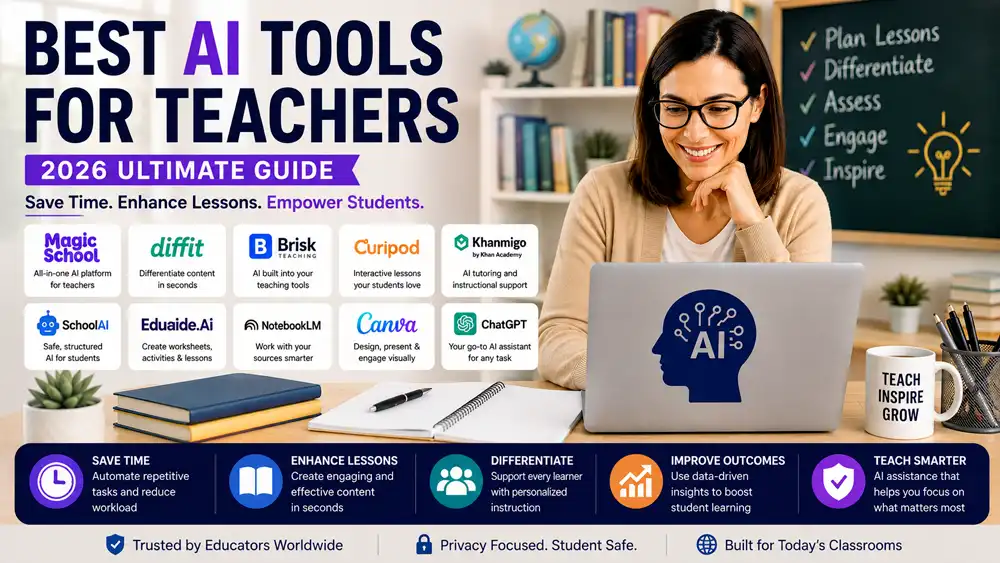
You Don’t Need 10 AI Tools
One mistake teachers can make is trying to use every AI tool they discover.
You probably don’t need 10 subscriptions, 10 browser extensions, and 10 different AI dashboards.
In many cases, two or three well-chosen tools are enough.
For example:
Simple Teacher Stack
MagicSchool AI + Canva + ChatGPT
Use MagicSchool for teacher-specific workflows, Canva for visual materials, and ChatGPT for flexible brainstorming and research.
Differentiation Stack
Diffit + MagicSchool + Canva
Use Diffit to adapt content, MagicSchool for instructional planning, and Canva to turn the final material into polished classroom resources.
Interactive Classroom Stack
Curipod + SchoolAI + Canva
Use Curipod for live participation, SchoolAI for structured AI activities, and Canva for visual lesson materials.
Research-Heavy Teacher Stack
NotebookLM + ChatGPT + Canva
Use NotebookLM to work through source materials, ChatGPT for brainstorming and transformation, and Canva to turn the final ideas into visual resources.
The best stack is the one that fits your actual workflow.
How to Use AI Without Losing the Human Side of Teaching
AI can save teachers time, but saving time should not become the only goal.
The purpose of using AI should be to reduce repetitive work so teachers have more time for the parts of education that require human judgment.
A good workflow looks like this:
Teacher defines the goal → AI creates a first draft → Teacher checks the output → Teacher adapts it → Students receive the final material
Not:
AI creates everything → Teacher publishes it without checking
That distinction matters.
AI can make factual mistakes, misunderstand a learning objective, create inappropriate examples, produce biased language, or generate activities that look good but don’t actually support learning.
Teachers should therefore remain the final decision-makers.
7 Practical Rules for Using AI as a Teacher
1. Give AI Context
Don’t simply ask:
Create a lesson.
Tell the AI:
- Grade level
- Subject
- Topic
- Learning objective
- Lesson duration
- Student level
- Prior knowledge
- Assessment requirements
More context usually produces a more useful starting point.
2. Treat AI Output as a Draft
Even when an AI-generated lesson looks polished, review it.
Check facts, examples, difficulty, instructions, and alignment with your curriculum.
3. Don’t Automatically Upload Sensitive Student Data
Avoid putting confidential student information, private records, grades, or personally identifiable information into an AI system unless your school’s policies and the specific service clearly allow it.
4. Don’t Let AI Replace Assessment Judgment
AI can help create rubrics, questions, and feedback drafts.
The teacher should remain responsible for important academic judgments.
5. Check for Bias
AI-generated examples can unintentionally contain cultural, social, gender, or other biases.
Review content before using it with students.
6. Teach Students How to Use AI
Students should understand that AI is not automatically correct.
They should learn how to question AI answers, verify information, cite sources where required, and use AI without outsourcing their thinking.
7. Measure Time Saved
The best AI tool isn’t necessarily the one with the most features.
If a tool takes 30 minutes to configure every time you use it, but another tool completes the same task in five minutes, the simpler tool may be better.
Frequently Asked Questions
What are the best AI tools for teachers in 2026?
Some of the strongest options include MagicSchool AI, Diffit, Brisk Teaching, Curipod, Khanmigo, SchoolAI, Eduaide AI, NotebookLM, Canva, and ChatGPT.
The best choice depends on the task. MagicSchool is a strong overall teacher platform, Diffit is excellent for differentiation, Curipod focuses on interactive lessons, NotebookLM is strong for source-based work, Canva is excellent for visual resources, and ChatGPT is the most flexible general-purpose option.
What is the best free AI tool for teachers?
There isn’t one universal answer because free plans and limits change.
Several tools on this list offer free access or free tiers, including MagicSchool, Diffit, Brisk Teaching, Curipod, SchoolAI, NotebookLM, Canva for eligible educators, and ChatGPT.
Always check the provider’s current plan before choosing a tool based solely on price.
Can teachers use ChatGPT to create lesson plans?
Yes.
Teachers can use ChatGPT to create lesson-plan drafts, activities, examples, questions, assessments, rubrics, explanations, and other teaching materials.
The important part is providing enough context and reviewing the output before using it in class.
Teachers who want to teach students how to use AI responsibly for schoolwork can also see our guide on how to use AI for homework.
Is AI safe for students?
AI safety depends on the specific platform, configuration, school policies, and how the technology is used.
Teachers should evaluate privacy policies, student-data handling, age requirements, administrative controls, content safeguards, and whether student activity can be monitored where appropriate.
AI should also be introduced with clear rules about appropriate use.
Can AI replace teachers?
No.
AI can automate or accelerate certain repetitive tasks, but teaching involves relationships, classroom management, motivation, judgment, empathy, communication, and understanding individual students.
The strongest use of AI is to assist teachers rather than replace them.
What is the best AI tool for lesson planning?
MagicSchool AI is one of the strongest dedicated options for teacher-focused lesson planning.
ChatGPT is more flexible and can also create detailed lesson plans when given sufficient context.
Brisk Teaching, Eduaide AI, and Khanmigo are also useful depending on the teacher’s workflow.
What is the best AI tool for differentiated instruction?
Diffit is one of the strongest choices when the main goal is adapting educational content for different learners.
It is particularly useful when teachers already have a source and want different versions or levels of the same material.
What is the best AI tool for interactive classroom activities?
Curipod is a strong choice for live interactive lessons, while SchoolAI is particularly interesting when students need structured interaction with AI.
Canva is another option for creating interactive and visual classroom activities.
Should teachers use multiple AI tools?
Yes, but they don’t need many.
A small combination of complementary tools can be more useful than trying to use every AI platform available.
For example, a teacher might use one tool for lesson planning, one for differentiation, and one for visual materials.
How should teachers verify AI-generated content?
Check important facts against reliable sources, review calculations, confirm curriculum alignment, inspect examples for bias or inappropriate content, and make sure the material is suitable for the students’ age and ability level.
For high-stakes information, never assume that an AI-generated answer is automatically correct.
Final Verdict: The Best AI Tools for Teachers 2026
The best AI tools for teachers in 2026 aren’t necessarily the tools with the most impressive feature lists.
They are the tools that solve real teaching problems.
If you want one place to start, MagicSchool AI is a strong overall choice because it is built around teacher workflows.
If differentiation is your biggest challenge, try Diffit.
If you want AI integrated into everyday teaching workflows, Brisk Teaching is worth considering.
For interactive lessons, Curipod stands out.
For education-focused instructional support, Khanmigo is a strong option.
For structured student-AI activities, SchoolAI offers a different approach.
For creating teaching resources, Eduaide AI is useful.
For research and source-based preparation, NotebookLM is particularly powerful.
For visual classroom materials, Canva is hard to ignore.
And if you want one flexible AI assistant that can adapt to almost any teaching task, ChatGPT remains one of the strongest choices.
The important thing is not to use AI simply because it is available.
Use it where it genuinely saves time, improves preparation, supports differentiated learning, or gives students a better learning experience.
AI should reduce the repetitive parts of teaching—not remove the human parts that make teaching valuable.
If you are just getting started, choose one tool, one teaching problem, and one small workflow.
Test it for a week.
Keep what works.
Remove what doesn’t.
Then expand from there.